
When activating a subscription, please ensure that you are an Organisation Admin user, as the first user to subscribe to Spark will become the Spark App Admin user for the organisation and will be responsible for managing other users.
1. Install the Spark marketplace app in your SitecoreAI instance
- Log into your Sitecore instance - https://portal.sitecorecloud.io/
- Navigate to the "Marketplace" and search for "Spark"
- Install the Spark marketplace app - https://doc.sitecore.com/mp/en/developers/marketplace/discovering-apps-in-the-public-marketplace.html#install-an-app
2. Initialise your Spark Environment (first time)
- Log into your Sitecore instance - https://portal.sitecorecloud.io/
- Navigate to your SitecoreAI Instance
-
Click on the jigsaw piece in the top right of the application
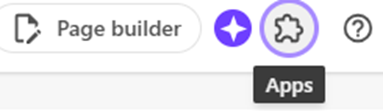
You should see the Dataweavers - Spark application, click the link
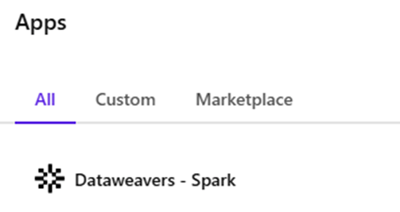
The SitecoreAI page will reload showing the Spark application Terms and Conditions page.
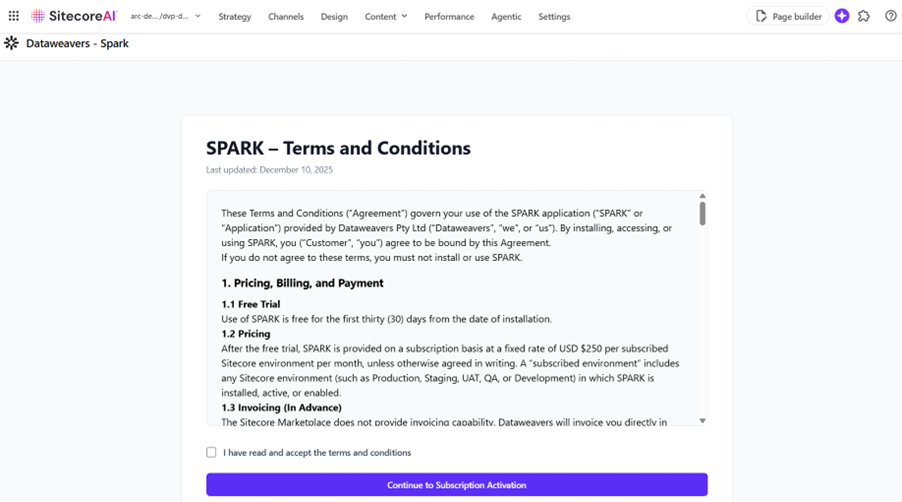
- To proceed, you must read and accept the terms and conditions.
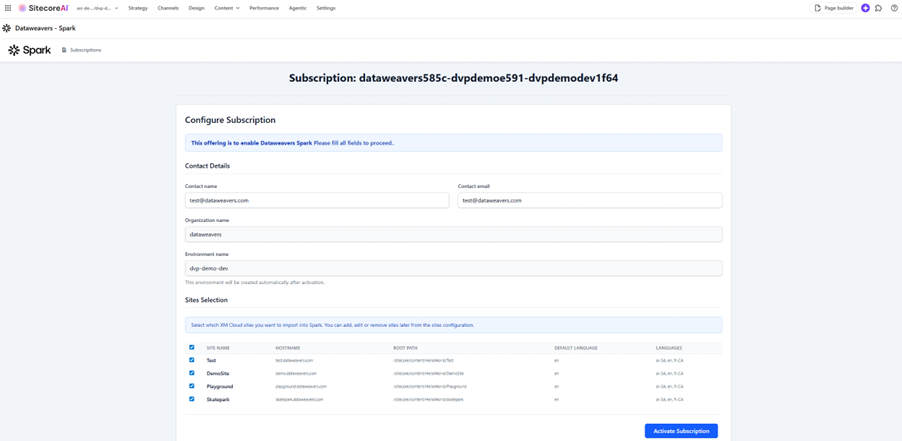
- The Spark activation screen will then display with preconfigured information about your Sitecore AI instance (sites, name, etc)
- Enter the contact information for your subscription.
- [Recommended] Select which sites you want Spark to manage page regeneration on (these can be edited/added/removed at a later date if required).
-
Select Activate Subscription
The page will reload on the configuration pages for Dataweavers Spark.

3. Configure Spark for your Environment
Set the following:
Area |
Field |
Instructions |
Basics |
Environment Name Environment Type |
|
Product Configuration |
GraphQL API Key |
Locate the live GraphQL Delivery Token Set the GraphQL API Key |
Product Configuration |
Admin Client Id Admin Client Secret |
Create some Edge Administration credentials in your SitecoreAI Deploy app. Set the Client ID and Client Secret in Spark |
App Configuration |
Route Handler Type Revalidate Mode |
Set the Route Handler Type and Revalidate Mode per your application settings |
Endpoints |
Name Endpoint URL |
Create a new endpoint |
Sites |
Site prefix |
Sites should be imported through the initial setup. Ensure that the path to the site is configured correctly. Different app types (App Router, Pages Router) or different frameworks (i.e. Sitecore Content SDK) often define different paths to the sites in next.js. i.e.
|
Post Revalidation Hooks |
Configure as required (Cloudflare or custom webhook). |
More information
- Sites - Assumed that these have been imported. Add/remove/edit sites configuration as required.
- For more information on the configurable options, please see the field definitions and glossary.
4. Install the next.js NPM library
Pre-requisites: Check Version Compatibility and Package Details
Visit the NPM package page to review version compatibility, installation instructions, and documentation:
https://www.npmjs.com/package/@dataweavers/spark-nextjs
1. Install the Spark Module
In a PowerShell or terminal, navigate to your Next.js application root and run:
npm install @dataweavers/spark-nextjs
2. Set these environment variables in your Next.js application:
Configure the secret in the application:
- Variable name: SPARK_REGENERATION_SECRET
- Variable value: Copy the Edge Secret field from the Spark application.
Set the Spark log level to control logging verbosity:
- Variable name: SPARK_LOG_LEVEL
- Variable value: DEBUG | INFO | WARN | ERROR | SILENT
Default: INFO
5. Verify Setup
Simple publish verification
1. Load a statically generated page in your site to ensure that it has been statically generated.
2. Review the header information in the request to ensure that the "x-nextjs-cache" header says HIT.
3. Make a change to the content on that page (temporary)
4. Run a publish in SitecoreAI for that page
(wait a few minutes - review the publish logs in SitecoreAI to see when the publish has finished)
5. Refresh the page to ensure the page has updated with the new content
Events
Utilise the "events" page in your Spark environment to view publish events and payloads through Spark.
See here for more details.
Reference documents
- Spark | Definitions & Glossary
- Spark | FAQs and Limitations
- Spark | Guide | User Admin
- Spark | Guide | NPM Module Installation
- Spark | Guide | Verification
- Spark | Guide | Quick Start for Sitecore XM
- Spark | Guide | Headless Configuration
- Spark | Guide | Site Configuration
- Spark | Guide | Azure Marketplace Subscription
- Spark | Guide | Cloudflare Configuration
Related to